Frontend Interview Knowledge Collection - HTML
HTML Interview Knowledge Summary
1. What is the purpose of DOCTYPE?
Related knowledge points:
IE5.5 introduced the concept of document mode, which is implemented through document type (DOCTYPE) switching.

The <!DOCTYPE> declaration is located at the first line of an HTML document, before the <html> tag. It tells the browser's parser which document standard to use for parsing.

The absence or incorrect format of DOCTYPE will cause the document to render in compatibility mode.
Answer (refer to 1-5):
<!DOCTYPE> declaration is generally at the first line of a document. Its main purpose is to tell the browser which mode to use for parsing the document. Generally, when specified, the browser parses in standards mode, otherwise in quirks mode. In standards mode, the browser's parsing rules follow the latest standards. In quirks mode, the browser simulates older browser behaviors in a backward-compatible way to ensure correct access to some older websites.

After HTML5, it's no longer necessary to specify a DTD document because HTML documents before HTML5 were based on SGML, so DTD was needed to define allowed attributes and rules. HTML5 is no longer based on SGML, so DTD is no longer needed.
2. What are the differences between standards mode and quirks mode?
In standards mode, rendering and JS engine parsing both run at the highest standard supported by the browser. In quirks mode, pages display in a loose, backward-compatible manner, simulating older browser behaviors to prevent sites from breaking.3. Why does HTML5 only need <!DOCTYPE HTML> without introducing DTD?
HTML5 is not based on SGML, so it doesn't need to reference DTD. However, it still needs DOCTYPE to standardize browser behavior (to make browsers operate as they should).

HTML4.01 is based on SGML, so it needs to reference DTD to tell the browser which document type is being used.
4. Differences between SGML, HTML, XML, and XHTML?
SGML is the Standard Generalized Markup Language, an international standard language for defining electronic document structures and describing their content. It's the origin of all electronic document markup languages.

HTML is HyperText Markup Language, mainly used to specify how to display web pages.

XML is eXtensible Markup Language, the future direction of web page languages. The biggest difference between XML and HTML is that XML tags can be created by users with unlimited quantity, while HTML tags are fixed and limited in number.

XHTML is now the markup language used by almost all web pages. It's essentially no different from HTML — same tags, same usage — but stricter than HTML, e.g., tags must be lowercase, tags must have closing tags, etc.
5. DTD introduction
DTD (Document Type Definition) is a set of machine-readable rules that define all allowed elements, their attributes, and hierarchical relationships in a specific version of XML or HTML. When parsing web pages, browsers use these rules to check page validity and take corresponding measures.

DTD is a declaration for HTML documents and also affects the browser's rendering mode (working mode).
6. Inline element definition
In HTML4, elements are divided into two categories: inline and block. An inline element only occupies the space contained by its corresponding tag's border.

Common inline elements include a, b, span, img, strong, sub, sup, button, input, label, select, textarea
7. Block-level element definition
Block-level elements occupy the entire width of their parent element (container), thus creating a "block".

Common block-level elements include div, ul, ol, li, dl, dt, dd, h1, h2, h3, h4, h5, h6, p
8. Differences between inline and block-level elements?
In HTML4, elements are divided into two categories: inline and block.

(1) Format: by default, inline elements don't start on a new line, while block-level elements start on a new line.
(2) Content: by default, inline elements can only contain text and other inline elements. Block-level elements can contain inline elements and other block-level elements.
(3) Property differences between inline and block-level elements are mainly in the box model: setting width on inline elements is invalid, height is invalid (line-height can be set), and setting margin and padding vertically doesn't affect other elements.
9. HTML5 element classification
In HTML4, elements are divided into two categories: inline and block. But in actual development, due to page presentation needs, frontend engineers often set the display value of inline elements to block (e.g., a tag), and also set the display value of block elements to inline. Later, inline-block appeared, which presents as inline externally but as block internally. Therefore, simply dividing HTML elements into inline and block no longer meets actual requirements.

In HTML5, elements are mainly divided into 7 categories: Metadata, Flow, Sectioning, Heading, Phrasing, Embedded, Interactive
10. Empty element definition
HTML tags with no content inside are called empty elements. Empty elements are closed in the start tag.

Common empty elements include: br, hr, img, input, link, meta
11. Link tag definition
The link tag defines the relationship between the current document and an external resource.

The link element is an empty element that only contains attributes. This element can only exist in the head section, but it can appear any number of times.

The rel attribute in the link tag defines the relationship between the current document and the linked document. Common stylesheet refers to defining an externally loaded stylesheet.
12. What’s the difference between using link and @import for importing styles?
(1) Affiliation difference. @import is a syntax rule provided by CSS, only for importing stylesheets; link is an HTML tag that can not only load CSS files but also define RSS, rel connection attributes, insert website icons, etc.

(2) Loading order difference. When loading a page, CSS introduced by link tag is loaded simultaneously; CSS introduced by @import is loaded after the page is fully loaded.

(3) Compatibility difference. @import was only introduced in CSS2.1, so it's only recognized by IE5+; link tag, as an HTML element, has no compatibility issues.

(4) DOM controllability difference. You can manipulate DOM through JS, insert link tags to change styles; since DOM methods are document-based, you cannot insert styles using @import.
13. Your understanding of browsers?
The main function of a browser is to present web resources selected by the user. It needs to request resources from the server and display them in the browser window. Resources are typically in HTML format, but also include PDF, images, and other formats. Users use URI (Uniform Resource Identifier) to specify the location of the requested resource.

HTML and CSS specifications define how browsers interpret HTML documents. These specifications are maintained by the W3C organization, which is responsible for setting web standards.

However, browser vendors develop their own extensions and don't fully follow the specifications, creating serious compatibility issues for web developers.

Simply put, a browser can be divided into two parts: shell and kernel.

The shell has relatively many types while the kernel has fewer. The shell refers to the browser's outer layer: menus, toolbars, etc. It mainly provides user interface operations and parameter settings. It calls the kernel to implement various functions. The kernel is the browser's core. The kernel is a program or module that displays content based on markup language. Some browsers don't distinguish between shell and kernel. Only after Mozilla separated Gecko did the clear division between shell and kernel emerge.
14. Your understanding of browser kernels?
Mainly divided into two parts: rendering engine and JS engine.

The rendering engine's responsibility is rendering, i.e., displaying requested content in the browser window. By default, the rendering engine can display HTML, XML documents, and images. It can also display other types of data through plugins (browser extensions), e.g., using a PDF reader plugin to display PDF format.

JS engine: parses and executes JavaScript to achieve dynamic effects on web pages.

Initially, the rendering engine and JS engine were not clearly distinguished. Later, as JS engines became increasingly independent, the kernel tends to refer only to the rendering engine.
15. Common browser kernel comparisons
Trident: This is the kernel used by IE browser. Because IE had a large market share in the early days, this kernel was quite popular. Many early web pages were also written according to this kernel's standards, but this kernel doesn't have good support for real web standards. Due to IE's high market share, Microsoft didn't update the Trident kernel for a long time, causing the Trident kernel to fall out of sync with W3C standards. Additionally, many bugs and security issues in the Trident kernel weren't resolved. Combined with some experts publicly stating their belief that IE browsers are unsafe, many users started switching to other browsers.

Gecko: This is the kernel used by Firefox and Flock. The advantage of this kernel is that it's powerful and feature-rich, supporting many complex web page effects and browser extension interfaces. However, the cost is obvious — it consumes many resources, such as memory.

Presto: Opera once used the Presto kernel. The Presto kernel is recognized as the fastest kernel for browsing web pages, thanks to its inherent advantages in development. When processing JS scripts and other scripting languages, it can be about 3 times faster than other kernels. The disadvantage is that it sacrifices some web page compatibility to achieve high speed.

Webkit: Webkit is the kernel used by Safari. Its advantage is fast web page browsing speed. Although not as fast as Presto, it's better than Gecko and Trident. The disadvantage is that it has low fault tolerance for web page code, meaning low compatibility, causing some non-standard web pages to display incorrectly. WebKit was formerly KDE's KHTML engine, and it can be said that WebKit is an open-source branch of KHTML.

Blink: Google announced in the Chromium Blog that it would part ways with Apple's open-source browser core Webkit to develop the Blink rendering engine (browser core) in the Chromium project, built into Chrome browser. The Blink engine is actually a branch of Webkit, just like Webkit is a branch of KHTML. The Blink engine is now jointly developed by Google and Opera Software. As mentioned above, Opera abandoned its own Presto kernel to join Google's camp and develop Blink alongside Google.
Detailed references: 《浏览器内核的解析和对比》 《五大主流浏览器内核的源起以及国内各大浏览器内核总结》
16. Kernels used by common browsers
 (1) IE browser kernel: Trident kernel, also known as IE kernel

 (2) Chrome browser kernel: collectively known as Chromium kernel or Chrome kernel, formerly Webkit kernel, now Blink kernel

 (3) Firefox browser kernel: Gecko kernel, commonly known as Firefox kernel

 (4) Safari browser kernel: Webkit kernel

 (5) Opera browser kernel: initially its own Presto kernel, later joined Google's camp, from Webkit to Blink kernel

 (6) 360 browser, Cheetah browser kernel: IE + Chrome dual kernel

 (7) Sogou, Maxthon, QQ browser kernel: Trident (compatibility mode) + Webkit (high-speed mode)

 (8) Baidu browser, TheWorld kernel: IE kernel

 (9) 2345 browser kernel: previously IE kernel, now also IE + Chrome dual kernel

 (10) UC browser kernel: opinions vary. UC claims it's their self-developed U3 kernel, but it still seems to be based on Webkit and Trident, and some say it's based on Firefox kernel.
17. Browser rendering principles?
 (1) First, parse the received document and build a DOM tree based on the document definition. The DOM tree consists of DOM elements and attribute nodes.

 (2) Then parse CSS to generate the CSSOM rule tree.

 (3) Build the render tree based on the DOM tree and CSSOM rule tree. The nodes of the render tree are called render objects. A render object is a rectangle with properties such as color and size. Render objects correspond to DOM elements, but this correspondence is not one-to-one. Invisible DOM elements are not inserted into the render tree. Some DOM elements correspond to several visible objects, typically elements with complex structures that cannot be described by a single rectangle.

 (4) When render objects are created and added to the tree, they don't have position and size. So after the browser generates the render tree, it performs layout (also called reflow) based on the render tree. In this phase, the browser needs to figure out the exact position and size of each node on the page. This behavior is also commonly called "automatic reflow."

 (5) After the layout phase is the painting phase. It traverses the render tree and calls the paint method of render objects to display their content on the screen. Painting uses UI infrastructure components.

 It's worth noting that this process is done incrementally. For better user experience, the rendering engine will present content on the screen as early as possible, rather than waiting until all HTML is parsed before building and laying out the render tree. It displays content as it parses, while possibly still downloading remaining content through the network.
Detailed references: 《浏览器渲染原理》 《浏览器的渲染原理简介》 《前端必读:浏览器内部工作原理》 《深入浅出浏览器渲染原理》
18. How is JS file handled during rendering? (Browser parsing process)
 JavaScript loading, parsing, and execution will block document parsing. That is, when building the DOM, if the HTML parser encounters JavaScript, it will pause document parsing, transfer control to the JavaScript engine, and after the JavaScript engine finishes running, the browser resumes document parsing from where it was interrupted.

 In other words, the faster you want the first screen to render, the less you should load JS files on the first screen. This is why it's recommended to place script tags at the bottom of the body tag. Of course, nowadays, script tags don't necessarily have to be at the bottom because you can add defer or async attributes to script tags.
19. What are the roles of async and defer? What’s the difference? (Browser parsing process)
 (1) Script without defer or async: the browser will immediately load and execute the specified script, meaning it doesn't wait for subsequent document elements. It loads and executes as soon as it's encountered.

 (2) The defer attribute means deferred execution of the imported JavaScript. HTML does not stop parsing while the JavaScript is being loaded; these two processes are parallel. The script file is executed after the entire document is parsed, before the DOMContentLoaded event is triggered. Multiple scripts execute in order.

 (3) The async attribute means asynchronous execution of the imported JavaScript. The difference from defer is that if it's already loaded, it starts executing immediately. That is, its execution still blocks document parsing, but its loading process does not. The execution order of multiple scripts cannot be guaranteed.
Detailed references: 《defer 和 async 的区别》
20. What is document pre-parsing? (Browser parsing process)
Webkit and Firefox have both implemented this optimization. When executing JavaScript scripts, another thread parses the remaining document and loads resources that need to be loaded over the network. This method enables parallel resource loading, resulting in faster overall speed. Note that pre-parsing does not modify the DOM tree. It leaves this work to the main parsing process, parsing only references to external resources, such as external scripts, stylesheets, and images.21. How does CSS block document parsing? (Browser parsing process)
 Theoretically, since stylesheets don't modify the DOM tree, there's no need to stop document parsing to wait for them. However, there is a problem: JavaScript script execution may request style information during document parsing. If the styles haven't been loaded and parsed yet, the script will get incorrect values, which would obviously cause many problems.

 So, if the browser hasn't completed CSSOM download and construction yet, and we want to run scripts at this time, the browser will delay JavaScript script execution and document parsing until CSSOM download and construction are complete. That is, in this case, the browser first downloads and builds CSSOM, then executes JavaScript, and finally continues document parsing.
22. What common undesirable phenomena occur when rendering pages? (Browser rendering process)
 FOUC: Mainly refers to the flash of unstyled content. Due to the browser's rendering mechanism (e.g., Firefox), HTML is rendered first before CSS loads, resulting in content displayed without styles, then styles suddenly appear. This problem is mainly caused by CSS loading taking too long, or CSS being placed at the bottom of the document.

 White screen: Some browser rendering mechanisms (e.g., Chrome) first build the DOM tree and CSSOM tree, then render after construction is complete. If the CSS part is placed at the bottom of HTML, the browser delays rendering due to incomplete CSS loading, resulting in a white screen. It could also be because JS files are placed in the head, and script loading blocks subsequent document content parsing, causing the page not to render for a long time, resulting in a white screen.
Detailed references: 《前端魔法堂:解秘 FOUC》 《白屏问题和 FOUC》
23. How to optimize the critical rendering path? (Browser rendering process)
 To complete the first render as quickly as possible, we need to minimize the following three variables:

 (1) Number of critical resources.
 (2) Critical path length.
 (3) Number of critical bytes.

 Critical resources are resources that may prevent the first render of a web page. The fewer these resources, the less work the browser has to do and the less CPU and other resources it occupies.

 Similarly, the critical path length is affected by the dependency graph between all critical resources and their byte sizes: some resources can only be downloaded after the previous resource has been processed, and larger resources require more round trips to download.

 Finally, the fewer critical bytes the browser needs to download, the faster it can process content and display it on screen. To reduce bytes, we can reduce the number of resources (delete them or make them non-critical), and also compress and optimize each resource to minimize the transfer size.

 General steps for optimizing the critical rendering path:

 (1) Analyze and characterize the critical path: number of resources, bytes, length.
 (2) Minimize the number of critical resources: delete them, delay their download, mark them as async, etc.
 (3) Optimize critical bytes to shorten download time (number of round trips).
 (4) Optimize the loading order of remaining critical resources: you need to download all critical assets as early as possible to shorten the critical path length.
Detailed references: 《优化关键渲染路径》
24. What are repaint and reflow? (Browser painting process)
 Repaint: When some elements in the render tree need to update properties that only affect the element's appearance and style, without affecting layout, such as background-color. This operation is called repaint.

 Reflow: When part (or all) of the render tree needs to be rebuilt due to changes in element size, layout, hiding, etc., affecting layout. This operation is called reflow.

 Common properties and methods that cause reflow:

 Any operation that changes an element's geometric information (element position and size) will trigger reflow.

 (1) Adding or removing visible DOM elements;
 (2) Element size changes — margin, padding, border, width, and height;
 (3) Content changes, e.g., user typing in an input box;
 (4) Browser window size changes — when the resize event occurs;
 (5) Calculating offsetWidth and offsetHeight properties;
 (6) Setting the value of the style property;
 (7) Modifying the default font of the web page.

 Reflow always causes repaint, but repaint doesn't necessarily cause reflow. The cost of reflow is much higher than repaint. Changing a child node in a parent node may cause a series of reflows of the parent node.
Common properties and methods that cause repaint:
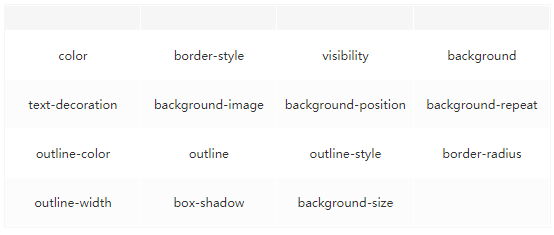
Common properties and methods that cause reflow:
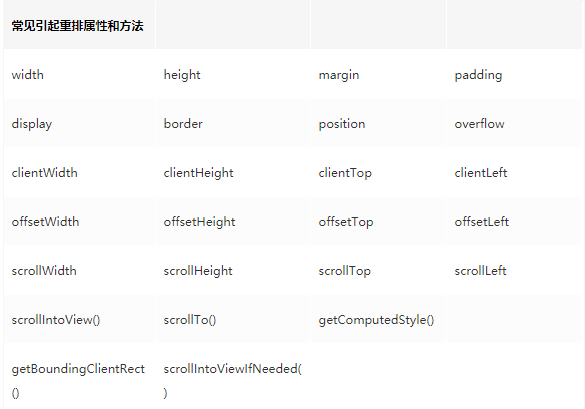
Detailed references: 《浏览器的回流与重绘》
25. How to reduce reflow? (Browser painting process)
 (1) Use transform instead of top.

 (2) Don't put node property values in a loop as loop variables.

 (3) Don't use table layout; even a small change can cause the entire table to re-layout.

 (4) Modify DOM offline, e.g., use the documentFragment object to manipulate DOM in memory.

 (5) Don't modify DOM styles one by one. Instead, predefine CSS classes and then modify the DOM's className.
26. Why is DOM manipulation slow? (Browser painting process)
Some DOM operations or property access may cause page reflow and repaint, resulting in performance consumption.27. Difference between DOMContentLoaded and Load events?
 The DOMContentLoaded event is triggered when the initial HTML document has been completely loaded and parsed, without waiting for stylesheets, images, and subframes to finish loading.

 The Load event is triggered when all resources have finished loading.
Detailed references: 《DOMContentLoaded 事件 和 Load 事件的区别?》
28. What new features and removed elements does HTML5 have?
 HTML5 is no longer a subset of SGML. It mainly adds features related to images, location, storage, multitasking, etc.

 New additions:

 Canvas for painting;
 video and audio elements for media playback;
 Local offline storage: localStorage for long-term data storage (data doesn't disappear when browser is closed);
 sessionStorage: data is automatically deleted when the browser is closed;
 Better semantic content elements like article, footer, header, nav, section;
 Form controls: calendar, date, time, email, url, search;
 New technologies: webworker, websocket;
 New document property: document.visibilityState

 Removed elements:

 Purely presentational elements: basefont, big, center, font, s, strike, tt, u;
 Elements with negative impact on usability: frame, frameset, noframes;
29. How to handle browser compatibility issues with HTML5 new tags?
 (1) IE8/IE7/IE6 support tags created via document.createElement. This feature can be used to make these browsers support HTML5 new tags. After browser support, default styles need to be added.

 (2) Of course, you can also directly use mature frameworks like html5shim;
      `<!--[if lt IE 9]>
      <script> src="http://html5shim.googlecode.com/svn/trunk/html5.js"</script>
      <![endif]-->`

      [if lte IE 9]...[endif] determines the IE version, limiting execution to IE9 and below.
30. Briefly describe your understanding of HTML semantics?
Related knowledge points:
 (1) Use the right tags for the right purpose.
 (2) HTML semanticization structures page content, making it clearer and easier for browsers and search engines to parse.
 (3) Even without CSS styles, it displays in a document format that is easy to read.
 (4) Search engine crawlers also rely on HTML markup to determine context and keyword weights, benefiting SEO.
 (5) Makes it easier for people reading the source code to divide and understand the website, facilitating maintenance and comprehension.
Answer:
I think HTML semanticization mainly refers to using appropriate tags to divide the structure of web page content. The essential function of HTML is to define the structure of web page documents. A semantic document makes the page structure clearer and easier to understand. This not only benefits developer maintenance and understanding but also allows machines to correctly interpret the document content. For example, the commonly used b tag and strong tag both render text bold, but strong tag carries emphasis semantics. For general display, there may be no visual difference, but for machines, there is a significant difference. If a user uses a screen reader to access the web page, the strong tag will produce a noticeable tone change, while the b tag won't. If a search engine crawler analyzes our web page, it will rely on HTML tags to determine context and keyword weights. A semantic document is friendly to crawlers and helps them interpret the document content, benefiting our website's SEO. From HTML5, we can see that the standard tends toward building web pages semantically, with new semantic tags like header, footer, and removal of non-semantic tags like big and font.Detailed references: 《语义化的 HTML 结构到底有什么好处?》 《如何理解 Web 语义化?》 《我的 HTML 会说话——从实用出发,谈谈 HTML 的语义化》
31. Difference between b and strong, and between i and em?
 In terms of page display, text surrounded by <b> and <strong> will be bolded, while text surrounded by <i> and <em> will be displayed in italics.

 However, <b> and <i> are natural style tags, representing meaningless bold and meaningless italics respectively, with the display style { font-weight: bolder}. They simply indicate "this should be displayed in bold" or "this should be displayed in italics." These two tags are not recommended in HTML4.01.

 Meanwhile, <em> and <strong> are semantic style tags. <em> indicates general emphasis text, while <strong> indicates text with stronger emphasis than <em>.

 When using reading devices to browse web pages: <strong> will be read with emphasis, while <b> displays emphasized content.
Detailed references: 《HTML5 中的 b/strong,i/em 有什么区别?》
32. What SEO should frontend pay attention to?
 (1) Reasonable title, description, keywords: search engines weight these three items in descending order. Title values should emphasize key points, with important keywords appearing no more than 2 times, positioned early. Different pages should have different titles. Description should summarize page content concisely with appropriate length, avoid keyword stuffing. Different pages should have different descriptions. Keywords should list important keywords only.

 (2) Semantic HTML code that complies with W3C standards: semantic code helps search engines understand web pages easily.

 (3) Important content HTML code placed first: search engines crawl HTML from top to bottom. Some search engines have length limits on crawling, so placing important content first ensures it gets crawled.

 (4) Don't output important content with JS: crawlers don't execute JS to get content.

 (5) Minimize iframe usage: search engines don't crawl content inside iframes.

 (6) Non-decorative images must have alt attributes.

 (7) Improve website speed: website speed is an important factor in search engine ranking.
33. How to use HTML5 offline storage? Can you explain the working principle?
 When users are not connected to the internet, they can still access the site or application normally. When connected, the cache files on the user's machine are updated.

 Principle: HTML5 offline storage is based on a newly created .appcache file caching mechanism (not storage technology). Resources listed in this file for offline storage are stored like cookies. Later, when the network is offline, the browser will display the page using the offline stored data.

 How to use:

 (1) Create a manifest file with the same name as the HTML file, then add a manifest attribute to the page header like below:

     <html lang="en" manifest="index.manifest">

 (2) Write offline storage resources in the cache.manifest file:
    CACHE MANIFEST
    #v0.11
    CACHE:
    js/app.js
    css/style.css
    NETWORK:
    resourse/logo.png
    FALLBACK:
    / /offline.html

     CACHE: Lists resources that need offline storage. Since the page containing the manifest file is automatically cached, you don't need to list the page itself.

     NETWORK: Resources listed below can only be accessed online. They won't be stored offline, so they can't be used offline. However, if a resource appears in both CACHE and NETWORK, it will still be stored offline, meaning CACHE has higher priority.

     FALLBACK: If accessing the first resource fails, use the second resource instead. For example, the above file means if accessing any resource in the root directory fails, access offline.html.

 (3) When offline, operate window.applicationCache for offline caching.

 How to update the cache:

 (1) Update the manifest file
 (2) Through JavaScript operations
 (3) Clear browser cache

 Notes:

 (1) Browser limitations on cache data capacity may vary (some browsers limit each site to 5MB).
 (2) If the manifest file or any file listed cannot be downloaded properly, the entire update process will fail, and the browser will continue using the old cache.
 (3) The HTML referencing the manifest must be from the same origin (domain) as the manifest file.
 (4) Resources in FALLBACK must be from the same origin as the manifest file.
 (5) Once a resource is cached, directly requesting this absolute path in the browser will also access the cached resource.
 (6) Other pages on the site that don't have the manifest attribute set will also access cached resources if they request cached resources.
 (7) When the manifest file changes, the resource request itself will also trigger an update.
Detailed references: 《HTML5 离线缓存-manifest 简介》 《有趣的 HTML5:离线存储》
34. How does the browser manage and load HTML5 offline storage resources?
 When online, the browser detects the manifest attribute in the HTML head and requests the manifest file. If it's the first time accessing the app, the browser downloads the corresponding resources based on the manifest file content and stores them offline. If the app has been accessed before and resources are already stored offline, the browser loads the page using offline resources, then compares the new manifest file with the old one. If the file hasn't changed, nothing happens. If the file has changed, it re-downloads the resources and stores them offline.

 When offline, the browser directly uses the offline stored resources.
35. What common browser-side storage technologies are there?
 Common browser storage technologies include cookie, localStorage, and sessionStorage.

 There are also two storage technologies for large-scale data storage: webSQL (deprecated) and indexDB.

 IE supports userData for data storage, but it's rarely used unless there's strong browser compatibility requirements.
Detailed references: 《很全很全的前端本地存储讲解》
36. Please describe the differences between cookies, sessionStorage, and localStorage?
Related information:
 SessionStorage, LocalStorage, and Cookie can all be used to store data on the browser side, and they are all string-type key-value pairs. The difference is that the first two belong to HTML5 WebStorage, created for convenient client-side data storage. Cookie is data stored on the user's local terminal (usually encrypted) to identify user identity. Cookie data is always carried in HTTP requests of the same origin (same protocol, host, port), even when not needed, and is passed back and forth between browser and server.

 Storage size:
   cookie data size cannot exceed 4k.
   sessionStorage and localStorage also have storage size limits but are much larger than cookies, reaching 5M or more.

 Validity period:
   localStorage stores persistent data that doesn't disappear when the browser is closed unless actively deleted.
   sessionStorage data is cleared at the end of the page session. The page session persists as long as the browser is open and remains even after page reload or restore. Opening a page in a new tab or window initializes a new session in the top-level browsing context.
   cookie remains valid until the set expiration time, even if the window or browser is closed.

 Scope:
   sessionStorage shares data only within the same origin's same window (or tab), i.e., only within the current session.
   localStorage is shared across all same-origin windows.
   cookie is shared across all same-origin windows.
Answer:
 Common browser-side storage technologies are cookie, localStorage, and sessionStorage.

 Cookie was originally a way for the server side to record user status. It's set by the server, stored on the client, and then sent to the server with each same-origin request. Cookies can store up to 4k of data. Their lifetime is specified by the expires attribute, and cookies can only be accessed and shared by same-origin pages.

 sessionStorage is a browser local storage method provided by HTML5. It borrows the concept of server-side sessions, representing data saved during a single session. It can typically store 5M or more data. It becomes invalid when the current window is closed, and sessionStorage can only be accessed and shared by same-origin pages in the same window.

 localStorage is also a browser local storage method provided by HTML5. It can also typically store 5M or more data. The difference from sessionStorage is that it doesn't become invalid unless manually deleted, and localStorage can only be accessed and shared by same-origin pages.

 The above methods are for storing small amounts of data. When we need to store large amounts of data locally, we can use the browser's indexDB, which is a local database storage mechanism provided by the browser. It's not a relational database. It uses object stores internally to store data, closer to NoSQL databases.
Detailed references: 《请描述一下 cookies,sessionStorage 和 localStorage 的区别?》 《浏览器数据库 IndexedDB 入门教程》
37. What are the disadvantages of iframe?
 The iframe element creates an inline frame that contains another document.

 Main disadvantages:

 (1) iframe blocks the onload event of the main page. The window's onload event is only triggered after all iframes (including elements inside them) have finished loading. In Safari and Chrome, dynamically setting the iframe's src through JavaScript can avoid this blocking.

 (2) Search engine crawlers cannot interpret such pages, which is detrimental to SEO.

 (3) iframe and the main page share the connection pool. Browsers have limits on connections to the same domain, which affects parallel page loading.

 (4) The browser's back button may not work properly.

 (5) Small mobile devices may not fully display frames.
Detailed references: 《使用 iframe 的优缺点》 《iframe 简单探索以及 iframe 跨域处理》
38. What is the Label’s role? How to use it?
 The label tag defines the relationship between form controls. When a user selects this label, the browser automatically shifts focus to the form control associated with the label.

 <label for="Name">Number:</label>
 <input type="text" name="Name" id="Name"/>
39. What is the autocomplete feature of HTML5 forms?
 The autocomplete attribute specifies whether an input field should have autocomplete enabled. It's enabled by default. Set autocomplete=off to disable it.

 Autocomplete allows browsers to predict input for fields. When users start typing in a field, the browser displays options to fill in based on previously typed values.

 The autocomplete attribute applies to <form> and the following <input> types: text, search, url, telephone, email, password, datepickers, range, and color.
40. How to implement communication between multiple browser tabs?
Related information:
 (1) Use WebSocket. The communicating tabs connect to the same server. After sending messages to the server, the server pushes messages to all connected clients.

 (2) Use SharedWorker (only implemented in Chrome browser). Two pages share the same thread, enabling bidirectional communication between tabs by sending and receiving data through the thread.

 (3) Use local storage methods like localStorage and cookies. When localStorage is modified, added, or deleted in another browsing context, it triggers a storage event. By listening to the storage event and controlling its value, we can communicate page information.

 (4) If we can get a reference to the corresponding tab, we can also use the postMessage method to achieve communication between multiple tabs.
Answer:
 Implementing communication between multiple tabs essentially uses the mediator pattern. Since tabs cannot communicate directly, we need a mediator for tabs to communicate with, and the mediator forwards the messages.

 The first implementation method uses the websocket protocol. Since websocket supports server push, the server can act as the mediator. Tabs send data to the server, and the server pushes it to other tabs.

 The second uses ShareWorker. ShareWorker creates a unique thread during the page's lifecycle, and opening multiple pages still uses the same thread. The shared thread can act as the mediator. Tabs exchange data through this shared thread.

 The third method uses localStorage. We can listen for changes to localStorage in one tab, and when another tab modifies data, we can get the data through the listener event. The localStorage object acts as the mediator.

 Another method uses postMessage. If we can get a reference to the corresponding tab, we can use postMessage for communication.
Detailed references: 《WebSocket 教程》 《WebSocket 协议:5分钟从入门到精通》 《WebSocket 学习(一)——基于 socket.io 实现简单多人聊天室》 《使用 Web Storage API》 《JavaScript 的多线程,Worker 和 SharedWorker》 《实现多个标签页之间通信的几种方法》
41. How to make webSocket compatible with older browsers?
 Adobe Flash Socket,
 ActiveX HTMLFile (IE),
 XHR based on multipart encoding,
 XHR based on long polling
42. What are the uses of the Page Visibility API?
 The significance of this new API is that by monitoring the visibility of a web page, we can predict page unloading, save resources, and reduce power consumption. For example, once the user is not looking at the web page, the following behaviors can be paused:

 (1) Server polling
 (2) Web animations
 (3) Playing audio or video
Detailed references: 《Page Visibility API 教程》
43. How to implement a circular clickable area on a page?
 (1) Pure HTML implementation: use <area> to mark hotspot areas on <img> images. The <map> tag defines a client-side image map, and <area> tags define areas within the image map. Area elements are always nested inside map elements. We can set the area to a circle to achieve a circular clickable area.

 (2) Pure CSS implementation: use border-radius. When border-radius equals half of an element's equal width and height, a circular clickable area is achieved.

 (3) Pure JS implementation: use a simple algorithm to determine if a point is within a circle. Listen for click events on the document, get the mouse position on each click, and determine if the position is within the specified circular area.
Detailed references: 《如何在页面上实现一个圆形的可点击区域?》 《HTML
44. Implement a 1px high line without using border, maintaining consistent effect in both standards mode and quirks mode across browsers.
<div style="height:1px;overflow:hidden;background:red"></div>45. Difference between title and h1?
The title attribute has no specific meaning, just indicates it's a title. h1 represents a clearly hierarchical title that significantly impacts page information crawling.46. Difference between title and alt of <img>?
 title is usually displayed when the mouse hovers over the element.

 alt is a unique attribute of <img>, an equivalent description of the image content. It's displayed when the image can't load and is used by screen readers to read images. It improves image accessibility. Except for purely decorative images, it must be set to meaningful values, and search engines will focus on analyzing it.
47. Difference between Canvas and SVG?
 Canvas is a method of drawing 2D graphics through JavaScript. Canvas renders pixel by pixel, so when we zoom Canvas, aliasing or distortion can occur.

 SVG is a language that uses XML to describe 2D graphics. SVG is based on XML, meaning every element in the SVG DOM is accessible. We can attach JavaScript event listener functions to elements. SVG stores the drawing method of the graphics, so SVG graphics don't distort when zoomed.
Detailed references: 《SVG 与 HTML5 的 canvas 各有什么优点,哪个更有前途?》
48. What is the purpose of CAPTCHA? What security issues does it address?
 (1) Distinguishes whether the user is a computer or a human. It can prevent malicious password cracking, vote fraud, and forum spamming.
 (2) Effectively prevents hackers from using specific programs to brute force login attempts on a specific registered user.
49. Definitions of progressive enhancement and graceful degradation
 Progressive enhancement: Build pages targeting low-version browsers, ensuring basic functionality, then improve effects and interactions for high-version browsers to achieve better user experience.

 Graceful degradation: Build complete functionality targeting high-version browsers first, then ensure compatibility with low-version browsers.
50. Difference between attribute and property?
 attribute is a property that a DOM element has as an HTML tag in the document.
 property is a property that a DOM element has as an object in JS.
 For standard HTML attributes, attribute and property are synchronized and automatically updated. However, for custom attributes, they are not synchronized.
51. Understanding of web standards, usability, and accessibility
 Usability: Whether the product is easy to learn, whether users can complete tasks, efficiency, and the user's subjective feelings during the process — evaluating product quality from the user's perspective. Good usability means high product quality and is the core competitiveness of an enterprise.

 Accessibility: The readability and comprehensibility of web content for users with disabilities.

 Maintainability: Generally includes two levels: first, when problems arise, the cost of quickly locating and fixing issues — lower cost means better maintainability. Second, whether the code is easy to understand, modify, and enhance functionality.
52. How many resources can different IE versions and Chrome download in parallel?
 (1) IE6: 2 concurrent connections
 (2) IE7 and above: 6 concurrent connections
 (3) Firefox, Chrome: also 6
53. The advantages and disadvantages of Flash and Ajax, and how to choose between them in usage?
 Flash:
 (1) Flash is suitable for handling multimedia, vector graphics, and machine access.
 (2) Insufficient in CSS and text processing, not easily searchable.

 Ajax:
 (1) Ajax has good CSS and text support, supports search.
 (2) Insufficient in multimedia, vector graphics, and machine access.

 Common points:
 (1) No-refresh message delivery with the server.
 (2) Can detect user offline and online status.
 (3) DOM manipulation.
54. How to refactor a page?
 (1) Write proper CSS.
 (2) Make the page structure more reasonable, improve user experience.
 (3) Achieve good page effects and improve performance.
55. Browser architecture
 * User Interface
   * Main Process
   * Kernel
       * Rendering Engine
       * JS Engine
           * Execution Stack
       * Event Trigger Thread
           * Message Queue
               * Microtasks
               * Macrotasks
       * Network Async Thread
       * Timer Thread
56. Common meta tags
 The <meta> element provides meta-information about the page, such as descriptions and keywords for search engines and update frequency.
 The <meta> tag is located in the document's head and doesn't contain any content. The attributes of the <meta> tag define name/value pairs associated with the document.

 <!DOCTYPE html> H5 standard declaration, using HTML5 doctype, case-insensitive
 <head lang="en"> Standard lang attribute syntax
 <meta charset='utf-8'> Declares the character encoding of the document
 <meta http-equiv="X-UA-Compatible" content="IE=edge,chrome=1"/> Prioritize using the latest IE version and Chrome
 <meta name="description" content="no more than 150 characters"/> Page description
 <meta name="keywords" content=""/> Page keywords
 <meta name="author" content="name, [email protected]"/> Page author
 <meta name="robots" content="index,follow"/> Search engine crawling
 <meta name="viewport" content="initial-scale=1, maximum-scale=3, minimum-scale=1, user-scalable=no"> Add viewport for mobile devices
 <meta name="apple-mobile-web-app-title" content="title"> iOS devices begin
 <meta name="apple-mobile-web-app-capable" content="yes"/> Title after adding to home screen (iOS 6+)
 Whether to enable WebApp full-screen mode, remove Apple's default toolbar and menu bar
 <meta name="apple-itunes-app" content="app-id=myAppStoreID, affiliate-data=myAffiliateData, app-argument=myURL">
 Add Smart App Banner (iOS 6+ Safari)
 <meta name="apple-mobile-web-app-status-bar-style" content="black"/>
 <meta name="format-detection" content="telphone=no, email=no"/> Set Apple toolbar color
 <meta name="renderer" content="webkit"> Enable 360 browser's speed mode (webkit)
 <meta http-equiv="X-UA-Compatible" content="IE=edge"> Prevent IE from using compatibility mode
 <meta http-equiv="Cache-Control" content="no-siteapp" /> Prevent Baidu transcoding
 <meta name="HandheldFriendly" content="true"> Optimized for handheld devices, mainly for older browsers that don't recognize viewport, like BlackBerry
 <meta name="MobileOptimized" content="320"> Microsoft's older browsers
 <meta name="screen-orientation" content="portrait"> UC force portrait
 <meta name="x5-orientation" content="portrait"> QQ force portrait
 <meta name="full-screen" content="yes"> UC force full screen
 <meta name="x5-fullscreen" content="true"> QQ force full screen
 <meta name="browsermode" content="application"> UC application mode
 <meta name="x5-page-mode" content="app"> QQ application mode
 <meta name="msapplication-tap-highlight" content="no"> Windows Phone click without highlight
 Set page not to cache
 <meta http-equiv="pragma" content="no-cache">
 <meta http-equiv="cache-control" content="no-cache">
 <meta http-equiv="expires" content="0">
Detailed references: 《Meta 标签用法大全》
57. What’s the difference between css reset and normalize.css?
Related knowledge points: